01. System Selection
Win mode
Mac mode
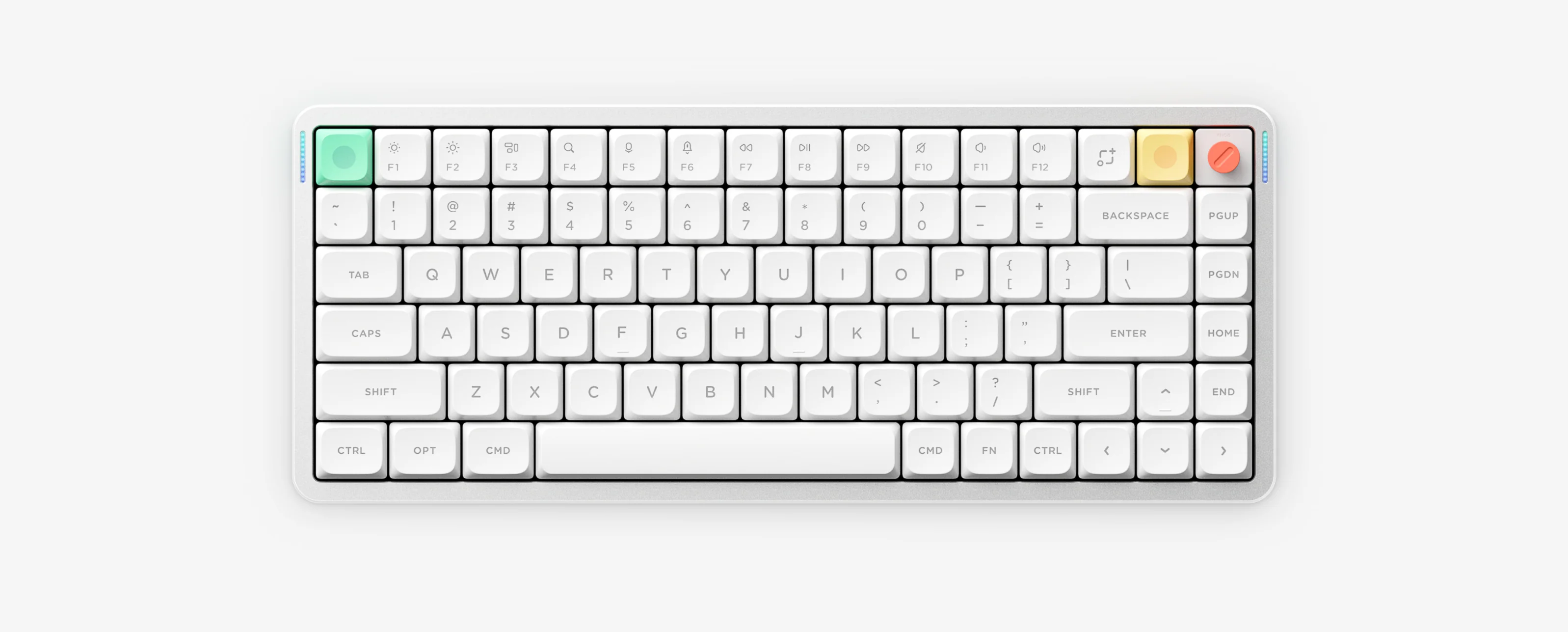
Find NuPhy Air75 V3 and Node75 keys for system switching, Bluetooth, lighting, sleep, reset, indicators and setup tools. Interactive shortcuts 01–09 apply only to these two models.
Use a data-capable USB cable to connect the keyboard in wired mode.
FN + 1 / 2 / 3 / 4 Bluetooth device 1 / Bluetooth device 2 / Bluetooth device 3 / 2.4G
Press briefly to switch devices, or hold for 3 seconds to enter pairing mode. For 2.4G, press FN + 4 before connecting the included receiver to your computer.
FN + ↑ / ↓ Increase or decrease backlight brightness
FN + ← Switch the backlight effect
FN + → Switch the backlight color
FN + < / > Decrease or increase backlight speed
FN + M + ↑ / ↓ Increase or decrease sidelight brightness
FN + M + ← Switch the sidelight effect
FN + M + → Switch the sidelight color
FN + M + < / > Decrease or increase sidelight speed
FN + ] Turn sleep mode on or off
After 6 minutes without input, the lighting turns off and the keyboard enters sleep mode.
Screenshot key (Mac) Capture a selected area
FN + Screenshot key (Mac) Capture the full screen
Screenshot key (Win) Capture the full screen
FN + \ Turn the persistent battery-level display on or off
FN + [ Hold for 3 seconds to restore factory settings.
Use the tool assigned to your exact model. Check the official manual center before changing firmware.
Use VIA for Air60 V2, Air75 V2 and Air96 V2.
Open VIA through NuPhy ConsoleUse NuPhyIO for Air60 HE, Air75 V3, Node75 and Node100.
Open NuPhyIOUse the official manual center to select Node75, Node100 and other models by LP/HP and ANSI, ISO or JIS layout.
Open the official firmware entry, then select the exact model and layout. Flashing steps are intentionally left to the official instructions.
Check the exact model name and layout printed on the keyboard or packaging. Sections 01–09 apply only to Air75 V2 and Air96 V2; use the matching model card for every other model.
Use VIA for Air60 V2, Air75 V2 and Air96 V2. Use NuPhyIO for Air60 HE, Air75 V3, Node75 and Node100.
Follow the matching model instructions, then hold its model-specific channel key until the relevant indicator flashes quickly. The channel keys differ by model.
Remove the old Bluetooth record and pair again. Keep the 2.4G receiver away from metal hubs, USB 3.0 devices and other transmitters.
Laboratory data rates the 4000mAh battery at 60–100 hours with all lights on and up to 1200 hours with RGB off. The official manual recommends a 5V/1A charger; turn lighting off for longer wireless use.
Open the official firmware page and follow its latest instructions for selecting the exact model and layout.
Confirm LP or HP first, then choose the manual matching the ANSI, ISO or JIS layout. The local Node75 PDF covers Low-Profile only; use the official manual center for Node75 HP and Node100.