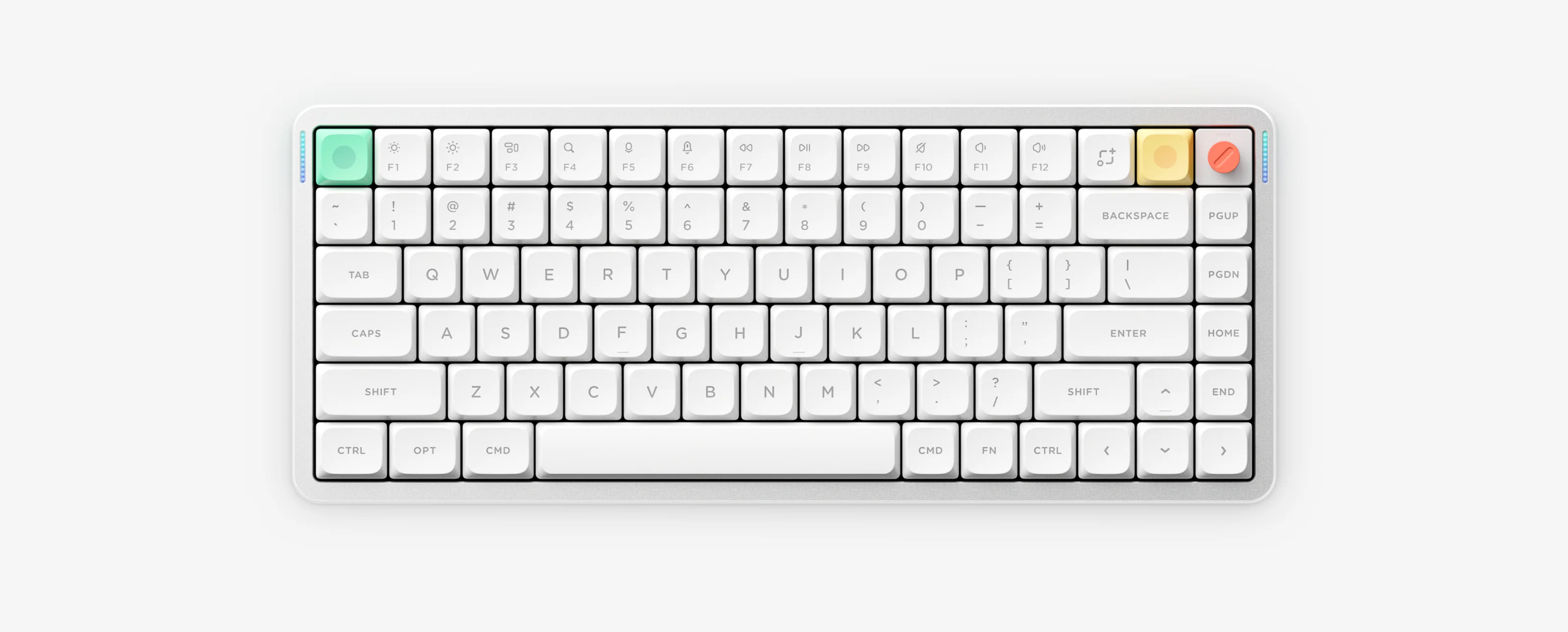
Node75 is available in both Low-Profile (LP) and High-Profile (HP) versions configured with NuPhyIO, featuring an upper-left Dot Matrix status display instead of Air75 V3’s dual sidebars. Only sections 01–03 of the home guide apply to Node75.
Node75 10-Second Cheat Sheet
Profiles & layouts
Low-Profile (local PDF) or High-Profile; ANSI / ISO / JIS
Sleep / ResetFollow the exact LP or HP + ANSI/ISO/JIS manual in NuPhyIO centerAir75 home sections 04–09 do not apply to Node75
LP vs HP & ANSI / ISO / JIS Manual Notes
The local PDF quick guide covers Node75 Low-Profile (LP) only. Node75 High-Profile (HP) and ISO/JIS owners should open the official NuPhyIO manual center.
Unlike Air V2/V3 and Halo V2 sidebars, Node75 uses its upper-left Dot Matrix panel for connection and battery feedback.
Charge via a standard 5V/1A charger or computer USB port.
Stop unwanted 6-minute sleep disconnects, find ANSI vs JIS/ISO factory reset shortcuts, and follow safe reset/Recovery rules.
Node75 Frequently Asked Questions
Is Weikav NUT75 the same keyboard as NuPhy Node75?
No. Weikav NUT75 is a separate 75 percent CNC aluminum keyboard made by Weikav with its own web driver. NuPhy Node75 uses NuPhyIO and NuPhy manuals.
Why do sections 04–09 on the home shortcut guide not apply to Node75?
Node75 uses FN plus Tab to toggle lighting, FN plus M plus question mark for the Dot Matrix display, and layout-specific sleep or reset steps inside the Node75 LP or HP manual.
How do I check 2.4G and battery status on Node75?
Check the upper-left Dot Matrix panel rather than side RGB bars. Dot Matrix group 4 indicates 2.4G wireless status, and full status icons are detailed in your LP or HP manual.
Where do I download the Node75 High-Profile or ISO/JIS manual?
The local PDF on this site is for Node75 Low-Profile only. Open the official NuPhyIO manual center to select Node75 High-Profile or ISO and JIS layouts.