Quick Answer: Do Not Mix Up Battery LED Tiers
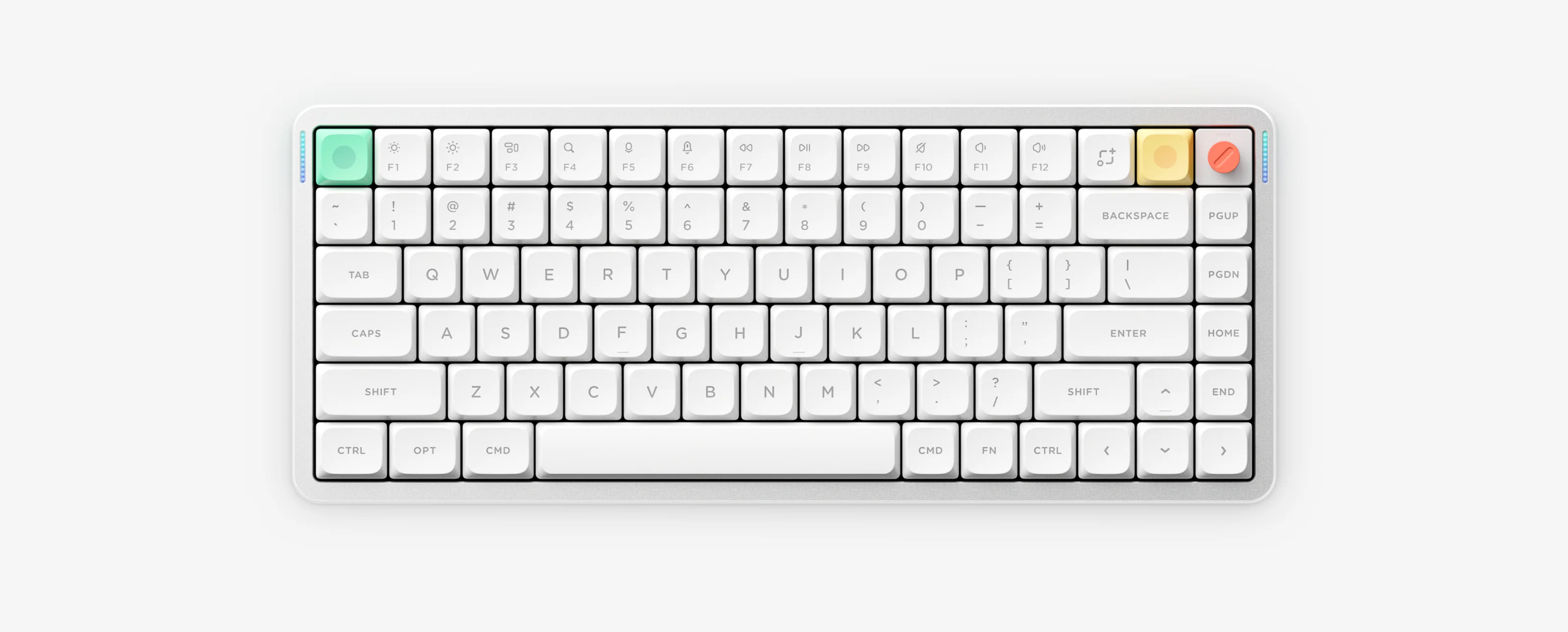
Press FN + \ (ANSI; Air100 V3 JIS uses FN + ]) to toggle the persistent battery bar. Percentage colors differ by firmware: Air V2/V3 uses Green 96–100%, Orange 11–95%, Red 1–10%; Kick75 and Halo V2 (QMK/VIA) use Green 81–100%, Yellow 51–80%, Orange 21–50%, Red 0–20%; Halo V2 (IO) uses Green 91–100%, Yellow 51–90%, Orange 11–50%, Red 0–10% (plus Purple = Win Lock). Node75/100 use the Dot Matrix display, and wired HE models have no battery LED.
Interactive RGB LED Indicator & Flash Decoder
Select your keyboard series/edition, LED zone, and color or flash pattern to see the exact state, battery percentage range, and recommended fix.
1. Select keyboard series / edition
2. Select LED zone
3. Select LED color & flash pattern
Diagnostic result
Battery nearly full / full charge (Air V2 & Air V3 tier).
96%–100%
Recommended action: No charging needed. Unplug once fully charged or press FN + \ (FN + ] on Air100 V3 JIS) to hide the persistent bar.
Related shortcut: FN + \ (ANSI) · FN + ] (Air100 V3 JIS)
Full LED Indicator & Battery Tier Reference Table
| 1. Select keyboard series / edition | 2. Select LED zone | 3. Select LED color & flash pattern | Diagnostic result | Recommended action |
|---|---|---|---|---|
| Air V2 / Air V3 | Right indicator bar | Green (solid) | Battery nearly full / full charge (Air V2 & Air V3 tier). (96%–100%) | No charging needed. Unplug once fully charged or press FN + \ (FN + ] on Air100 V3 JIS) to hide the persistent bar. [FN + \ (ANSI) · FN + ] (Air100 V3 JIS)] |
| Air V2 / Air V3 | Right indicator bar | Orange (solid) | Normal mid-range battery charge (Air V2 & Air V3 tier). (11%–95%) | Safe for continued wireless use. Toggle off the persistent bar with FN + \ if you prefer sidelight effects; recharge via 5V/1A when convenient. [FN + \ (ANSI) · FN + ] (Air100 V3 JIS)] |
| Air V2 / Air V3 | Right indicator bar | Red (solid) | Critically low battery (Air V2 & Air V3 tier). (1%–10%) | Plug into a standard 5V/1A charger or computer USB port right away (avoid high-power PD fast chargers) to prevent wireless dropouts. [Connect USB-C (5V/1A)] |
| Kick75 & Halo V2 (QMK/VIA) | Right indicator bar | Green (solid) | High battery charge (Kick75 IO/VIA & Halo V2 QMK/VIA tier). (81%–100%) | Plenty of wireless charge remaining. Toggle persistent display with FN + \. [FN + \] |
| Kick75 & Halo V2 (QMK/VIA) | Right indicator bar | Yellow (solid) | Upper-mid battery charge (Kick75 IO/VIA & Halo V2 QMK/VIA tier). (51%–80%) | Normal operating range; no immediate charging required. [FN + \] |
| Kick75 & Halo V2 (QMK/VIA) | Right indicator bar | Orange (solid) | Low-mid battery charge (Kick75 IO/VIA & Halo V2 QMK/VIA tier). (21%–50%) | Plan to recharge soon using a standard 5V/1A charger or computer USB port. [FN + \] |
| Kick75 & Halo V2 (QMK/VIA) | Right indicator bar | Red (solid) | Low battery warning (Kick75 IO/VIA & Halo V2 QMK/VIA tier). (0%–20%) | Charge immediately via 5V/1A adapter or computer USB port (avoid high-power fast chargers). [Connect USB-C (5V/1A)] |
| Halo V2 (NuPhyIO) | Right indicator bar | Green (solid) | Full / near-full battery charge (Halo75 V2 & Halo96 V2 IO tier). (91%–100%) | Ready for extended wireless use. Toggle persistent display with FN + \. [FN + \] |
| Halo V2 (NuPhyIO) | Right indicator bar | Yellow (solid) | Upper-mid battery charge (Halo75 V2 & Halo96 V2 IO tier). (51%–90%) | Healthy wireless battery range; no immediate action needed. [FN + \] |
| Halo V2 (NuPhyIO) | Right indicator bar | Orange (solid) | Low-mid battery charge (Halo75 V2 & Halo96 V2 IO tier). (11%–50%) | Recharge soon using a standard 5V/1A charger or PC USB port. [FN + \] |
| Halo V2 (NuPhyIO) | Right indicator bar | Red (solid) | Critically low battery (Halo75 V2 & Halo96 V2 IO tier). (0%–10%) | Plug into a 5V/1A charger or PC USB port immediately. [Connect USB-C (5V/1A)] |
| Halo V2 (NuPhyIO) | Right indicator bar | Purple (solid) | Windows key lock (Win Lock) is active on Halo V2 IO edition. (Win Lock Active) | Press the Win Lock combo (FN + Win on Windows mode) to unlock the Windows key if disabled unintentionally. [FN + Win] |
| Node Series (Dot Matrix) | — | Node75 (LP/HP), Node100 (LP/HP) | Node75 & Node100 use an upper-left Dot Matrix panel instead of left/right RGB sidebars. (Dot Matrix Display (group ④ = 2.4G on Node75)) | Read the upper-left Dot Matrix status icons directly and consult the matching LP or HP manual in the NuPhyIO center for exact battery and wireless symbols. [FN + 1 / 2 / 3 (BT) · FN + 4 (2.4G) · FN + M + ? (Matrix)] |
| Air HE (Wired Magnetic) | — | Air60 HE, Air75 HE | Air60 HE and Air75 HE are wired-only USB-C magnetic keyboards with no battery or battery indicator LED. (No internal battery (USB-C powered)) | Connect directly to your computer with a data-capable USB-C cable. Check Caps Lock or M3/M2/M1 hardware mode positions instead of wireless/battery LEDs. [Air75 HE: M3 Mac / M2 Win / M1 Gaming · FN + Tab (backlight)] |
| Air V2 / Air V3 / Kick75 & Halo V2 (QMK/VIA) / Halo V2 (NuPhyIO) | Left indicator bar | Cyan (solid) | Caps Lock is currently turned on. | Press Caps Lock once to return to lowercase typing. [Caps Lock] |
| Air V2 / Air V3 / Kick75 & Halo V2 (QMK/VIA) / Halo V2 (NuPhyIO) | Left indicator bar | Yellow (solid) | Keyboard is operating in Wired USB-C mode. | Use Wired mode when configuring in NuPhyIO or VIA. Slide the switch to Wireless if you want Bluetooth or 2.4G. [Hardware Wired / Wireless switch] |
| Air V2 / Air V3 / Kick75 & Halo V2 (QMK/VIA) / Halo V2 (NuPhyIO) | Left indicator bar | Blue (solid) | Bluetooth channel is active and connected. | Switch between paired Bluetooth hosts with a short press of FN + 1 / 2 / 3 (Air60 V2: FN + Q / W / E). [FN + 1 / 2 / 3 (Air60 V2: FN + Q / W / E)] |
| Air V2 / Air V3 / Kick75 & Halo V2 (QMK/VIA) / Halo V2 (NuPhyIO) | Left indicator bar | Blue (fast flash) | Bluetooth pairing mode active (discoverable). | Select the NuPhy keyboard in your computer, tablet or phone Bluetooth settings. If invisible, forget the old Bluetooth record first. [Hold FN + 1 / 2 / 3 (Air60 V2: Q / W / E)] |
| Air V2 / Air V3 / Kick75 & Halo V2 (QMK/VIA) / Halo V2 (NuPhyIO) | Left indicator bar | Green (solid) | 2.4GHz wireless receiver mode is active and connected. | If latency or dropouts occur, move the 2.4G receiver away from USB 3.0 ports and metal hubs. [FN + 4 (Air60 V2: FN + R)] |
| Air V2 / Air V3 / Kick75 & Halo V2 (QMK/VIA) / Halo V2 (NuPhyIO) | Left indicator bar | Green (fast flash) | 2.4GHz receiver pairing / reconnect search active. | Ensure the keyboard is on channel 4 (or R on Air60 V2) and plug the 2.4G dongle closely into a USB 2.0 port or extension cable. [Hold FN + 4 (Air60 V2: FN + R)] |
| Air V2 / Air V3 / Kick75 & Halo V2 (QMK/VIA) / Halo V2 (NuPhyIO) | Right indicator bar | Green (3 flashes) | Auto-sleep mode enabled (flashes green 3 times). | Lighting powers off and keyboard sleeps after 6 minutes idle to conserve battery. [FN + ] (ANSI) · FN + [ (Air100 V3 JIS)] |
| Air V2 / Air V3 / Kick75 & Halo V2 (QMK/VIA) / Halo V2 (NuPhyIO) | Right indicator bar | Red (3 flashes) | Auto-sleep mode disabled (flashes red 3 times). | Keyboard stays awake continuously; press the sleep shortcut again to re-enable 6-minute idle sleep and preserve battery. [FN + ] (ANSI) · FN + [ (Air100 V3 JIS)] |
| Air V2 / Air V3 / Kick75 & Halo V2 (QMK/VIA) / Halo V2 (NuPhyIO) | System / mode flash | Blue (3 flashes) | Windows system mode active (flashes blue 3 times). | Alt/Win modifier positions match Windows. Flip the hardware switch to Mac if using macOS. [Win / Mac hardware switch] |
| Air V2 / Air V3 / Kick75 & Halo V2 (QMK/VIA) / Halo V2 (NuPhyIO) | System / mode flash | White (3 flashes) | macOS system mode active (flashes white 3 times). | Command/Option modifier positions and Mac function keys are active. Flip to Win mode on Windows PCs. [Win / Mac hardware switch] |
1. Battery LED percentage tiers by model & edition
| Model / Edition Tier | Green | Yellow | Orange | Red | Extra / Toggle |
|---|---|---|---|---|---|
| Air60 V2, Air75 V2, Air96 V2, Air75 V3, Air100 V3 | 96%–100% | — | 11%–95% | 1%–10% | FN + \ (ANSI) / FN + ] (Air100 V3 JIS) |
| Kick75 (IO & VIA), Halo75 V2 (QMK/VIA), Halo96 V2 (QMK/VIA) | 81%–100% | 51%–80% | 21%–50% | 0%–20% | FN + \ toggle |
| Halo75 V2 (IO), Halo96 V2 (IO) | 91%–100% | 51%–90% | 11%–50% | 0%–10% | Purple = Win Lock; FN + \ toggle |
| Node75 (LP/HP), Node100 (LP/HP) | Dot Matrix | Dot Matrix | Dot Matrix | Dot Matrix | Upper-left Dot Matrix; group ④ = 2.4G on Node75 |
| Air60 HE, Air75 HE | None | None | None | None | Wired USB-C only (no battery) |
2. Left indicator bar & 3-flash system signals
| LED Zone & State | Meaning | Action |
|---|---|---|
| Left bar — Cyan solid | Caps Lock active | Press Caps Lock to toggle off |
| Left bar — Yellow solid | Wired USB-C mode active | Switch to Wireless for BT / 2.4G |
| Left bar — Blue solid / fast flash | Bluetooth active / pairing mode | Hold FN + 1/2/3 (Air60 V2: Q/W/E) to pair |
| Left bar — Green solid / fast flash | 2.4G active / pairing mode | Use FN + 4 (Air60 V2: FN + R) |
| Right bar — Green 3x / Red 3x | Auto-sleep ON (Green) / OFF (Red) | Toggle via FN + ] (ANSI) / FN + [ (Air100 V3 JIS) |
| Mode LED — Blue 3x / White 3x | Win mode (Blue) / Mac mode (White) | Match the physical OS switch on your board |
3. Safe 5V/1A charging & battery life context
- Always charge via a standard 5V/1A adapter or computer USB port; avoid high-power USB-PD fast chargers.
- Air75 V3 (4000mAh): NuPhy laboratory data rates 60–100 hours all lights on, up to 1200 hours RGB off.
- Air100 V3 (4000mAh): NuPhy laboratory data rates 24–73 hours all lights on, up to 1000 hours RGB off.
Battery & Indicator LED Questions
Why does an orange LED mean 11–95 percent on Air75 V3 but 21–50 percent on Kick75?
NuPhy uses three different battery LED scales: Air V2 and V3 omit yellow and map orange from 11 to 95 percent; Kick75 and Halo V2 QMK and VIA add yellow and map orange from 21 to 50 percent; Halo V2 IO maps orange from 11 to 50 percent.
What does a purple indicator light mean on Halo75 V2 or Halo96 V2?
On the Halo75 V2 IO and Halo96 V2 IO editions, a purple LED indicates Windows key lock (Win Lock).
Why does FN plus backslash not toggle the battery indicator on JIS Air100 V3?
On JIS Air100 V3 keyboards, the persistent battery toggle is FN plus the right bracket key rather than backslash.
What charger specification does NuPhy recommend?
NuPhy recommends charging via a standard 5V/1A adapter or computer USB port and avoiding high-power fast chargers. Rated runtimes such as up to 1200 hours on Air75 V3 with RGB off are based on laboratory data.