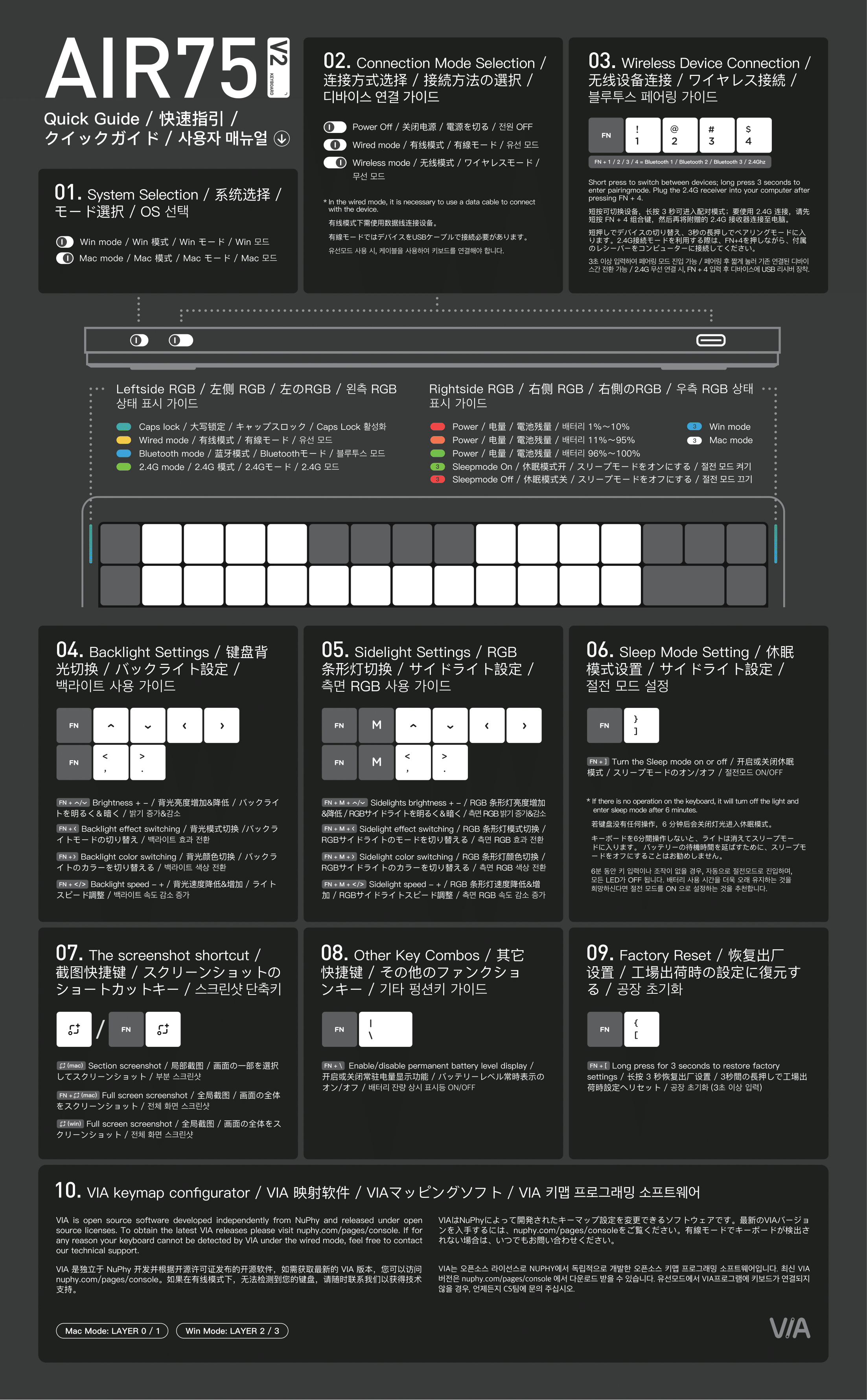
Air75 V2 is NuPhy’s 75% (84-key) low-profile tri-mode mechanical keyboard configured with QMK/VIA. All interactive sections 01–09 on the home cheat sheet and the ANSI diagram below apply directly to Air75 V2.
Air75 V2 10-Second Cheat Sheet
- Configuration tool
- VIA / QMK via NuPhy Console (Chrome/Edge wired)
- Wireless channels
- FN + 1 / 2 / 3 (BT, hold 3s pair); FN + 4 (2.4G)
- Turn off lights
- FN + ↓ brightness down or FN + ] 6-min auto-sleep
- Battery check
- FN + \ toggle (Green 96–100%, Orange 11–95%, Red 1–10%)
- Factory reset
- FN + [ (hold 3 seconds)
Verified Air75 V2 Shortcuts
- FN + 1 / 2 / 3 Switch or pair Bluetooth devices 1–3 Hold 3 seconds until left blue LED flashes quickly
- FN + 4 Switch to 2.4G receiver mode Press FN + 4 before inserting the dongle away from USB 3.0 interference
- FN + ↑ / ↓ / ← / → Backlight brightness (Up/Down), effect (Left) and color (Right)
- FN + < / > Decrease or increase backlight speed
- FN + M + ↑ / ↓ / ← / → / < / > Adjust sidelight brightness, effect, color and speed
- FN + ] Toggle 6-minute auto-sleep mode Right LED flashes 3x Green (ON) or 3x Red (OFF)
- FN + \ Toggle persistent right-side battery level indicator
- FN + [ Hold 3 seconds to restore factory settings
- Screenshot / FN + Screenshot Mac area/full screenshot or Windows full screenshot
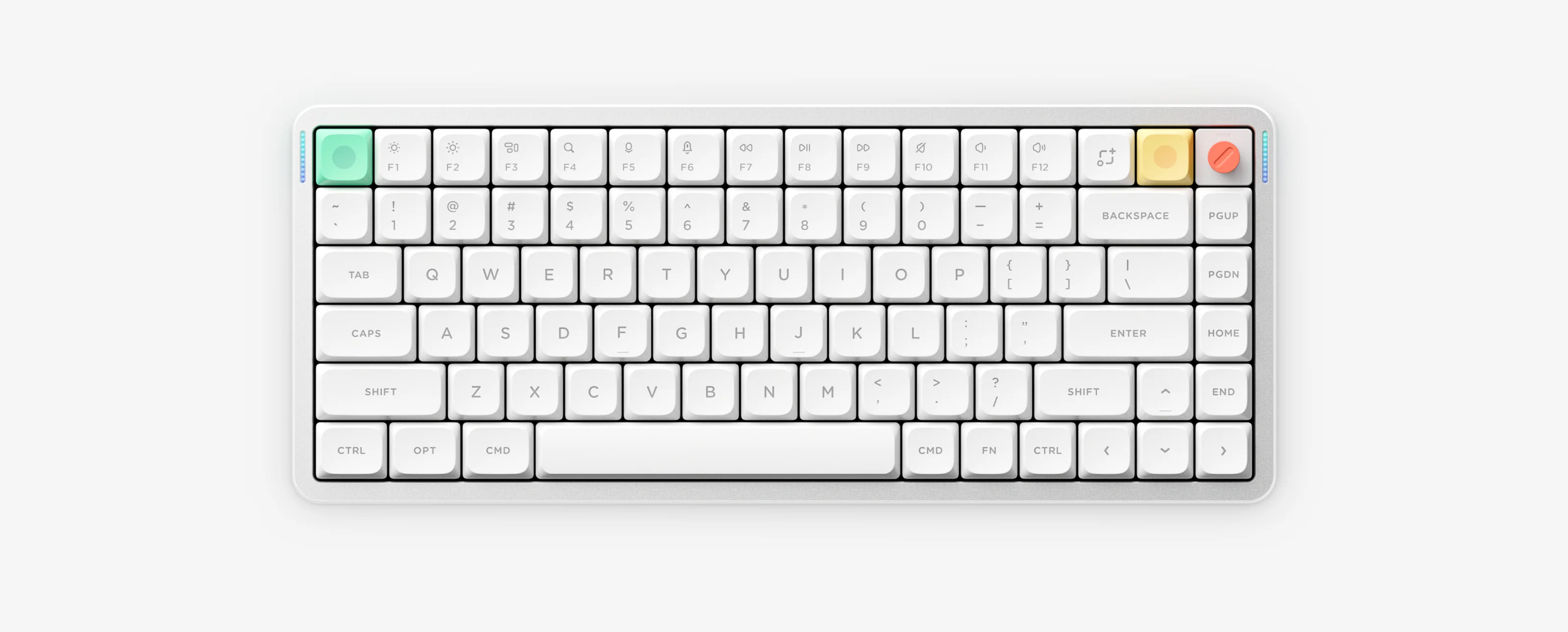
75% ANSI keyboard diagram for Air75 V2, Air75 V3 and Air96 V2 (sections 01–09)
Layout, Firmware & Charging Notes
- Air75 V2 uses an 84-key 75% low-profile ANSI layout and is configured with QMK/VIA rather than NuPhyIO.
- If 2.4G lags or drops, avoid metal USB hubs and USB 3.0 ports; use a USB 2.0 port or extension cable.
- Charge with a standard 5V/1A adapter or computer USB port (avoid high-power PD fast chargers).
Air75 V2 Manual & VIA Resources
Air75 V2 Frequently Asked Questions
Does Air75 V2 use VIA or NuPhyIO?
Air75 V2 uses QMK and VIA, not NuPhyIO. Connect directly over a USB-C data cable in Wired mode and open VIA via NuPhy Console in Chrome or Microsoft Edge.
How do I turn off Air75 V2 RGB lighting?
Air75 V2 manuals do not use FN plus Tab. Reduce brightness to minimum using FN plus the Down arrow, or enable 6-minute auto-sleep with FN plus the right bracket key.
How do I pair Air75 V2 Bluetooth and 2.4G?
Switch to Wireless mode, hold FN plus 1, 2 or 3 until the left indicator flashes blue quickly for Bluetooth, or press FN plus 4 before plugging the 2.4G receiver into a port away from USB 3.0 devices.
How do I factory reset Air75 V2?
Hold FN plus the left bracket key for 3 seconds. This clears custom keymaps and pairings so you can re-pair Bluetooth, while leaving the installed firmware version unchanged.